
Shopify's fraud analysis will tell you an order is high risk. It will not do anything about it. The order gets created, the payment gets captured if you are on automatic capture, and it sits in your admin waiting for a human to make a decision.
For most merchants that human decision arrives late — after fulfillment, sometimes after the parcel has shipped. By then the money, the product, and the chargeback fee are all gone.
This guide covers two ways to close that gap automatically, the setting you have to change first, and the reason cancelling on risk level alone is a worse rule than it looks.
First, Change Your Payment Capture Method
Do this before you build any automation. It is the step that makes everything else work properly, and most guides skip it.
Go to Settings → Payments and scroll to Payment capture method. Change it from automatic to manual.
On automatic capture, Shopify takes the money the moment the order is placed. Your automation runs afterwards. So cancelling means issuing a refund on money that already moved — you pay processing fees, the refund takes days to reach the customer, and if it was fraud you have already been touched.
On manual capture, the card is authorised but not charged. Your automation runs, and cancelling simply voids the authorisation. No money moved. No fee. Nothing to claw back.
There is a real trade-off. Authorisations expire, typically within about a week, so you have to capture legitimate orders before then. That is exactly what the first Flow workflow below handles.
If you take only one thing from this guide, take this: automatic cancellation on automatic capture is a refund machine. Switch to manual first.
Option 1: Shopify Flow
Shopify Flow is free and it is not Plus-only. Shopify's documentation states it is available on the Basic, Grow, Advanced, and Plus plans. Plenty of older articles still call it a Plus feature — ignore them.
Workflow A: Capture payment on safe orders
Build this one first. It is what makes manual capture practical.
- From your Shopify admin, go to Apps → Flow.
- Click Create workflow, then Browse templates.
- Select Risk, then choose the template that captures payment when the order is not high fraud risk.
- Review it and turn it on.
Now low and medium risk orders capture on their own, and only the flagged ones wait for you. Without this, manual capture means capturing every order by hand, which nobody keeps up for long.
Workflow B: Cancel and restock high-risk orders
- Create workflow → Browse templates → Risk.
- Select Cancel and restock high risk orders.
- Adjust the actions: cancel, restock inventory, tag the order, and send yourself a notification.
- Turn it on.
The trigger that catches everyone out
If you build this workflow from scratch rather than from the template, use the Order risk analyzed trigger, not Order created.
Fraud analysis is not instant. When an order is created, Shopify has not scored it yet, so a workflow triggered on Order created reads an empty risk level and its condition never matches. The workflow appears to be running and silently does nothing.
This is the single most common reason a hand-built Flow automation fails, and it fails quietly, which is worse.
Where Flow stops
Flow is capable and free, and for many stores it is enough. Its limits are worth knowing:
- It only acts after the order exists. Flow cannot block a checkout.
- It works from Shopify's risk level, so your rule is only as good as Shopify's score. You cannot build conditions on signals Shopify does not surface, such as how many other customers share this customer's name.
- Some payment methods behave differently. PayPal and similar do not always support the same capture and void behaviour.
Option 2: A Rules Engine
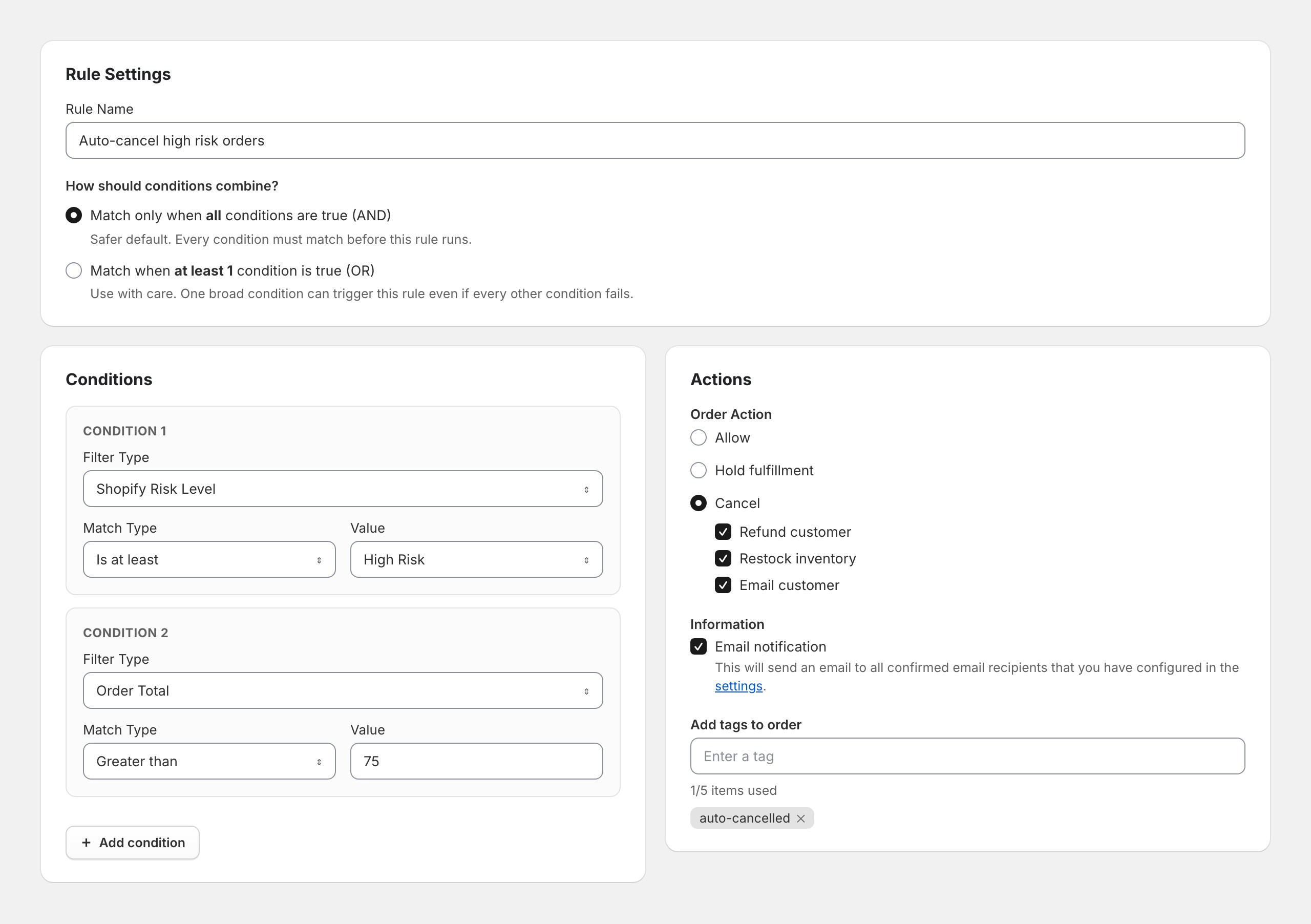
If you want conditions Shopify's risk level does not give you, a rules app covers more ground. Here is the same automation built in FraudFalcon, which is the rule shown in the screenshot above.
- Open FraudFalcon and go to Rules.
- Click Add new rule.
- Name it
Auto-cancel high risk orders. - Leave How should conditions combine? on Match only when all conditions are true (AND).
- Add the first condition:
- Filter Type — Shopify Risk Level
- Match Type — Is at least
- Value — High Risk
- Add the second condition:
- Filter Type — Order Total
- Match Type — Greater than
- Value —
75
- Under Actions, set Order Action to Cancel, and tick Refund customer, Restock inventory, and Email customer.
- Tick Email notification so you hear about every firing.
- Add a tag such as
auto-cancelled. - Save.
Is at least is worth noticing. It means the rule matches high risk now, and would also match anything Shopify rates above high in future. Using Is instead pins the rule to exactly one level.
The conditions Shopify's risk level does not give you
This is the reason to reach for a rules engine rather than Flow. Beyond risk level you can match on around 44 fields, including:
- Customer Chargebacks — how many past disputes this customer already has, across all time. The single best predictor you have.
- Check if Disposable Email — catches throwaway providers without maintaining a list.
- Billing vs. Shipping Address Mismatch — with minor formatting differences ignored, so "St" versus "Street" does not trigger it.
- Customer Name Used by Other Customers — how many other customer records share this exact name. Catches one person cycling through accounts.
- Customer Order Count with a timeframe of 24 hours, 7 days, 30 days, 365 days, or all time. Velocity, in other words.
- Shopify Protect Eligibility — whether the order is covered, which changes your exposure entirely.
That last one is genuinely useful and almost nobody uses it. If an order is eligible for Shopify Protect, a chargeback on it is covered. Cancelling a covered order costs you the sale to protect against a loss you would not have taken. A rule that cancels only when the order is not eligible for Protect is strictly better than one that ignores coverage.
Cancel or Hold? The Decision That Matters
Both Flow and a rules engine let you cancel or hold. This choice affects your revenue more than any condition you write.
| Hold fulfillment | Cancel | |
|---|---|---|
What happens | Order created, fulfillment blocked until released | Order cancelled, optionally refunded and restocked |
Cost of a false positive | A delay, and a customer email | A lost sale, usually a lost customer |
Cost of a false negative | You still have time to catch it | n/a |
Reversible | Yes, in one click | No, not really |
Requires you to act | Yes, on every held order | No |
Good for | Getting started, medium risk, ambiguous signals | Proven patterns, clear fraud, high volume |
Start with Hold fulfillment. Every time. Run it for two to four weeks and look at what it caught. If every held order was obviously fraudulent, switch that rule to Cancel with confidence. If it held genuine customers, you have learned that for the price of a short delay rather than for the price of the customer.
The asymmetry is the whole argument. A held order that turns out to be real costs you an apology. A cancelled order that turns out to be real costs you the sale, probably a bad review, and someone who never comes back.
Do Not Cancel on Risk Level Alone
The obvious rule is "if risk is high, cancel". It is also a rule that gives you no control over the cost of being wrong.
Shopify's fraud analysis is machine learning applied to signals, and Shopify's own documentation is clear that it is not perfect: legitimate orders get flagged and fraudulent ones get through. Common false positives are ordinary customer behaviour:
- Someone using a VPN, which is now completely normal
- A gift shipped to a different address from the billing address
- A customer travelling and ordering from another country
- A first-time customer placing an unusually large order, which is also what a good day looks like
Adding a second condition fixes this cheaply, because it lets you separate orders by how much a mistake would cost.
Cancel automatically when the order is large. High risk plus order total above $75 means the expensive mistakes get stopped automatically, because that is where your exposure is.
Hold for review when the order is small. A second rule — high risk, order total $75 or less, action Hold fulfillment — puts the cheap decisions in front of a human. If you are wrong, it cost you a delay.
Two rules, and the automation now matches the shape of the risk instead of treating a $12 order and a $1,200 order the same way.
Other second conditions worth considering, depending on what you sell:
- Customer Order Count is 0 — first-time buyers carry more risk than repeat customers
- Billing vs. Shipping Address Mismatch is True — combined with high risk, a meaningful signal
- Shopify Protect Eligibility is Not Eligible — only cancel what is not already covered
Confirm It Actually Ran
Automation you have not verified is a guess. Two ways to check.
Place a test order that matches your conditions and watch what happens.
Read the order timeline. Every action is recorded on the order itself, so you can see exactly what fired and in what order.
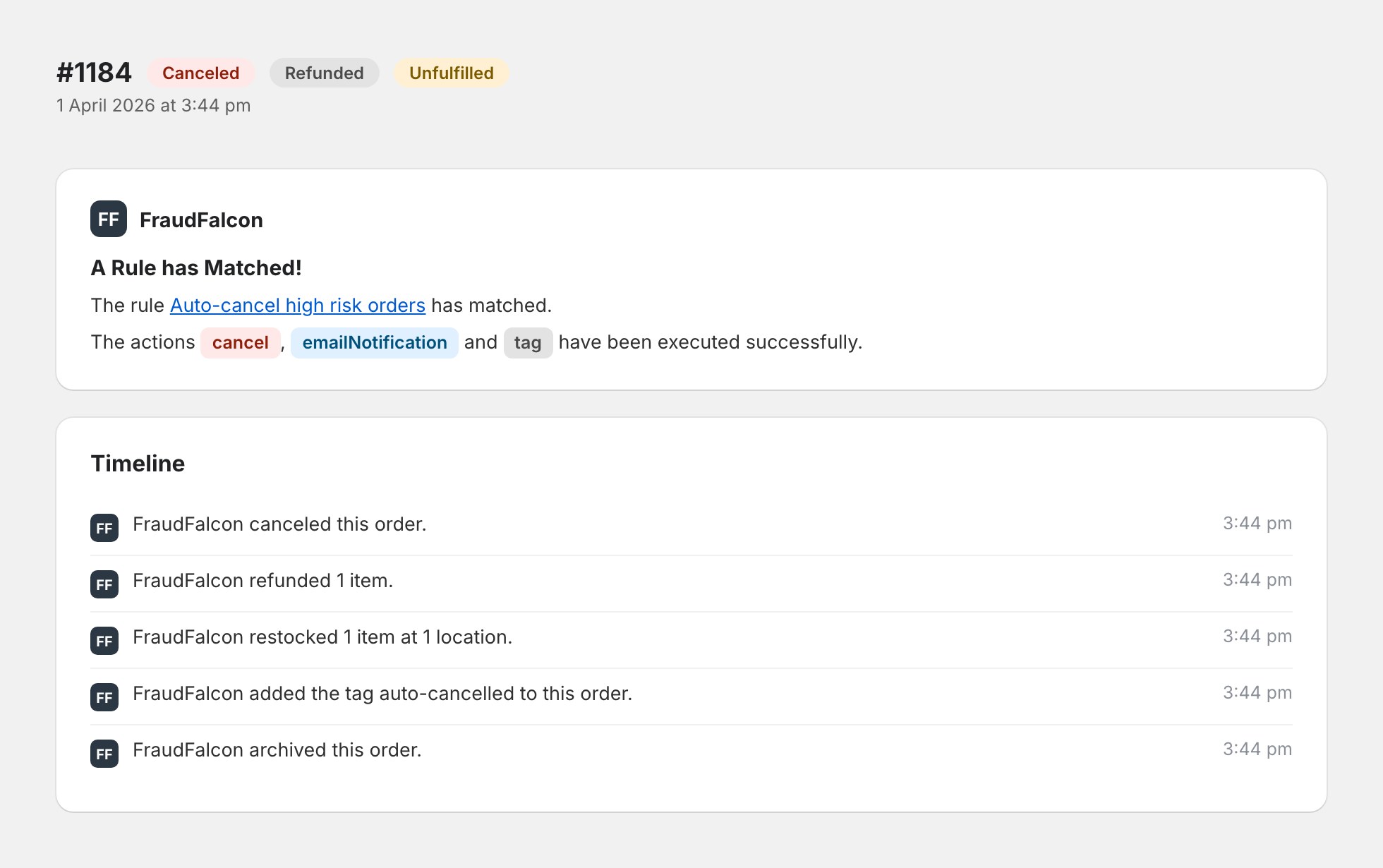
Leave Email notification on for the first few weeks. You want to know every time the rule fires while you still do not fully trust it. Turn it off once the pattern is boring.
Tagging every automated action is worth the ten seconds it takes to set up. Later you can filter your orders by the tag and see exactly what your automation has been doing all quarter.
Comparing the Options
| Manual review | Shopify Flow | Rules engine | Checkout rules | |
|---|---|---|---|---|
Cost | Your time | Free | Paid app | Varies |
Plan needed | Any | Basic and up | Any | Any |
When it acts | Whenever you look | After risk analysis | After risk analysis | Before the order exists |
Sees Shopify risk level | Yes | Yes | Yes | No |
Conditions available | All of them, by eye | Shopify's fields | ~44 fields | 6 cart and buyer fields |
Can cancel | Yes | Yes | Yes | n/a, blocks instead |
Can hold fulfillment | Yes | Yes | Yes | n/a |
Scales | No | Yes | Yes | Yes |
These are not alternatives so much as layers. A well-defended store usually runs checkout rules for known-bad patterns, post-order rules for risk-based decisions, and human review for the genuinely ambiguous middle.
If you want the checkout layer as well, our guide to Shopify card testing attacks walks through building a rule that blocks before the order is ever created.
A Sensible Setup to Copy
If you want somewhere to start, this configuration is defensible for most stores:
- Payment capture: manual.
- Flow workflow: capture payment when the order is not high risk.
- Rule 1: Shopify Risk Level is at least High Risk and Order Total greater than your average order value → Cancel, refund, restock, email the customer, tag
auto-cancelled. - Rule 2: Shopify Risk Level is at least High Risk and Order Total less than or equal to that value → Hold fulfillment, tag
review. - Rule 3: Customer Chargebacks greater than 0 → Hold fulfillment, tag
prior-chargeback.
Review the tagged orders weekly for the first month. Tighten what is too loose, loosen what is too tight.
Frequently Asked Questions
Does Shopify automatically cancel high-risk orders?
No. Shopify's fraud analysis flags orders as low, medium, or high risk, but it never cancels one for you. The order is created, the payment is captured if you are on automatic capture, and it sits waiting for you to decide. Automating the cancellation takes either Shopify Flow or a rules app.
Do I need Shopify Plus to automate this?
No. Shopify Flow is a free app available on the Basic, Grow, Advanced, and Plus plans. Older guides describe it as Plus-only, which has not been true for some time. Rules apps work on any plan too.
What setting do I need to change before automating cancellations?
Change your payment capture method to manual under Settings then Payments. On automatic capture the money is taken before your automation runs, so cancelling means processing a refund rather than simply voiding an authorisation.
Should I cancel high-risk orders or hold them?
Hold fulfillment first. Holding is reversible and costs you nothing but a short delay if the order turns out to be genuine. Cancelling a real customer's order loses the sale and usually the customer. Move to automatic cancellation only after watching the rule for a few weeks.
Are all high-risk orders on Shopify actually fraud?
No. Shopify's own documentation notes that legitimate orders can be flagged and fraudulent ones can pass. Common false positives include customers using a VPN, shipping a gift to a different address, or travelling and ordering from abroad. Treat high risk as a strong signal, not a verdict.
Why should I add a second condition instead of cancelling on risk level alone?
Risk level on its own gives you no control over the cost of a mistake. Adding a condition such as order value above a threshold means small orders get held for review while only large, high-risk orders are cancelled automatically, which is where the exposure actually is.
Will automatically cancelling orders hurt my store with Shopify?
No. Cancelling before fulfillment is the outcome Shopify recommends for orders you cannot verify. Fulfilling high-risk orders is what causes problems, because the resulting chargebacks can lead to funds being held or removal from Shopify Payments.
How do I test that my automation works before trusting it?
Create a test order that matches your conditions and watch what happens. Check the order timeline for the actions your automation took, and turn on email notifications so you find out every time the rule fires during the first few weeks.
The Short Version
Shopify flags high-risk orders and stops there. Closing the gap takes three things.
Switch payment capture to manual, so cancelling voids an authorisation instead of triggering a refund. Automate with Flow if Shopify's risk level is signal enough, or a rules engine if you want conditions like prior chargebacks and Shopify Protect eligibility. And start every new rule on Hold fulfillment, not Cancel, until you have watched it work.
Above all, do not cancel on risk level alone. Add a second condition so that the expensive mistakes get stopped automatically and the cheap ones get a human. That one change turns a blunt rule into a good one.
To understand the risk signals your rules are built on, see Shopify fraud analysis. For the broader set of automated defences, our guide to blocking fraudulent orders on Shopify covers what else is worth turning on.